Cubis® III · User guide
Data Sheet Creator Help
A practical guide for standard users: find a balance, choose accessories and create a customer-ready technical data sheet.
Getting started
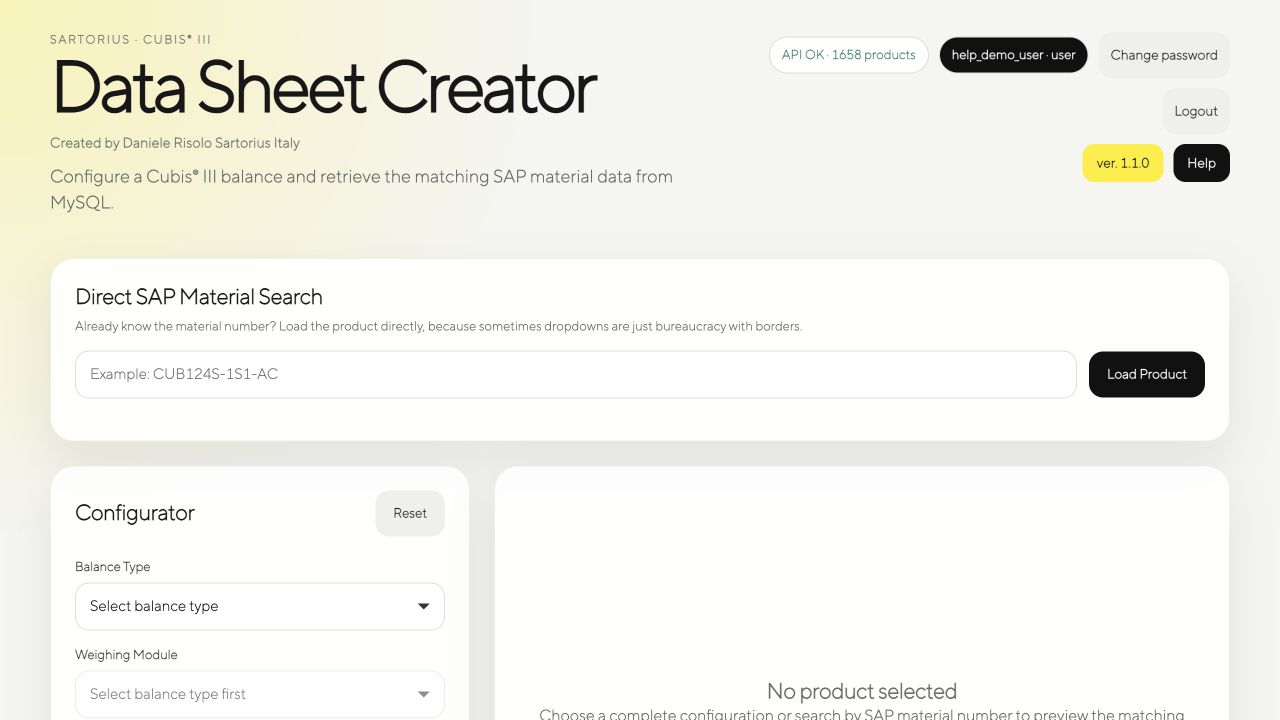
Sign in with the username and password supplied by your administrator. When authentication succeeds, the top-right area shows the API status and your signed-in account with the role user.
- API OK confirms that the product database is available.
- username · user confirms the active account and role.
- ver. 1.3.1 identifies the application release.
- Help opens this guide.
Find a product
Use either method below. Both load the same product details and technical data.
- If you know the SAP material number, enter it in Direct SAP Material Search and select Load Product.
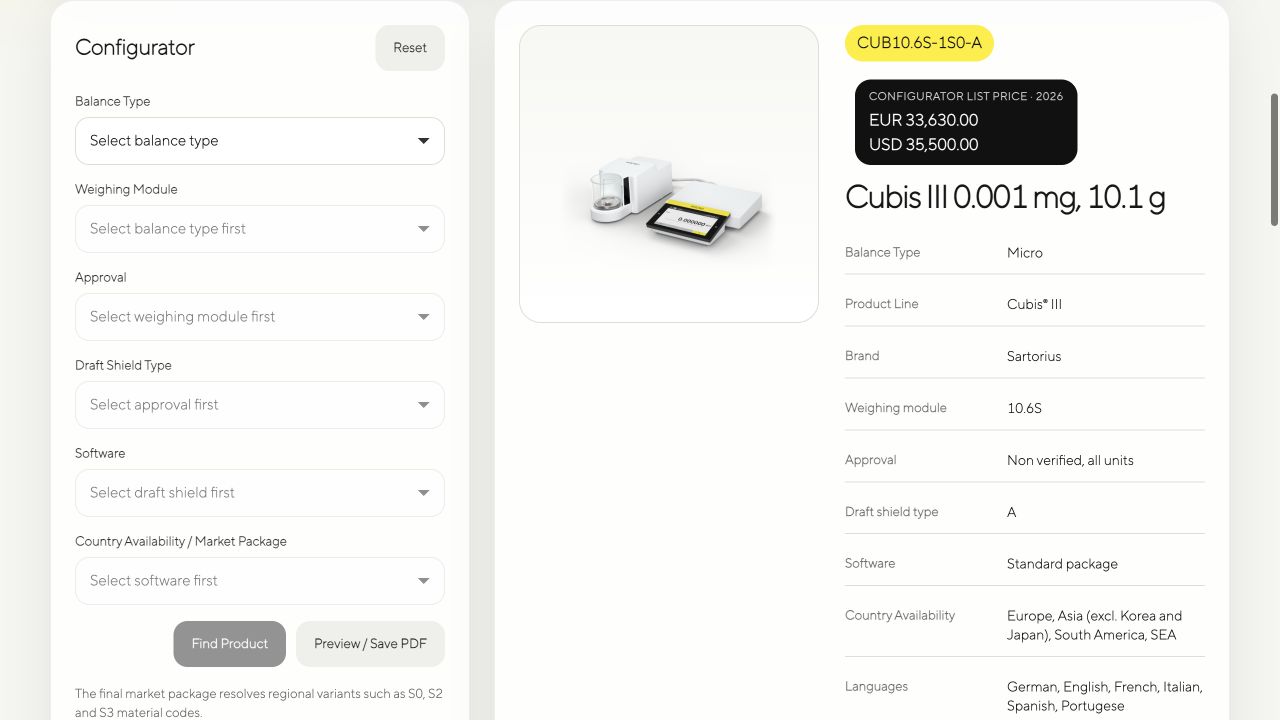
- Otherwise choose each option in the Configurator, from Balance Type through Country Availability / Market Package, then select Find Product.
After a successful match, verify the SAP material number, product name, description and technical specifications before creating the data sheet.
Select accessories
Related accessories appear below the product preview. Use the checkboxes to add only the accessories required for the current data sheet.
- Use the search field to filter by accessory code or description.
- Select all includes every related accessory.
- Clear removes all accessory selections.
- The preview refreshes whenever the selection changes.
Preview and save the PDF
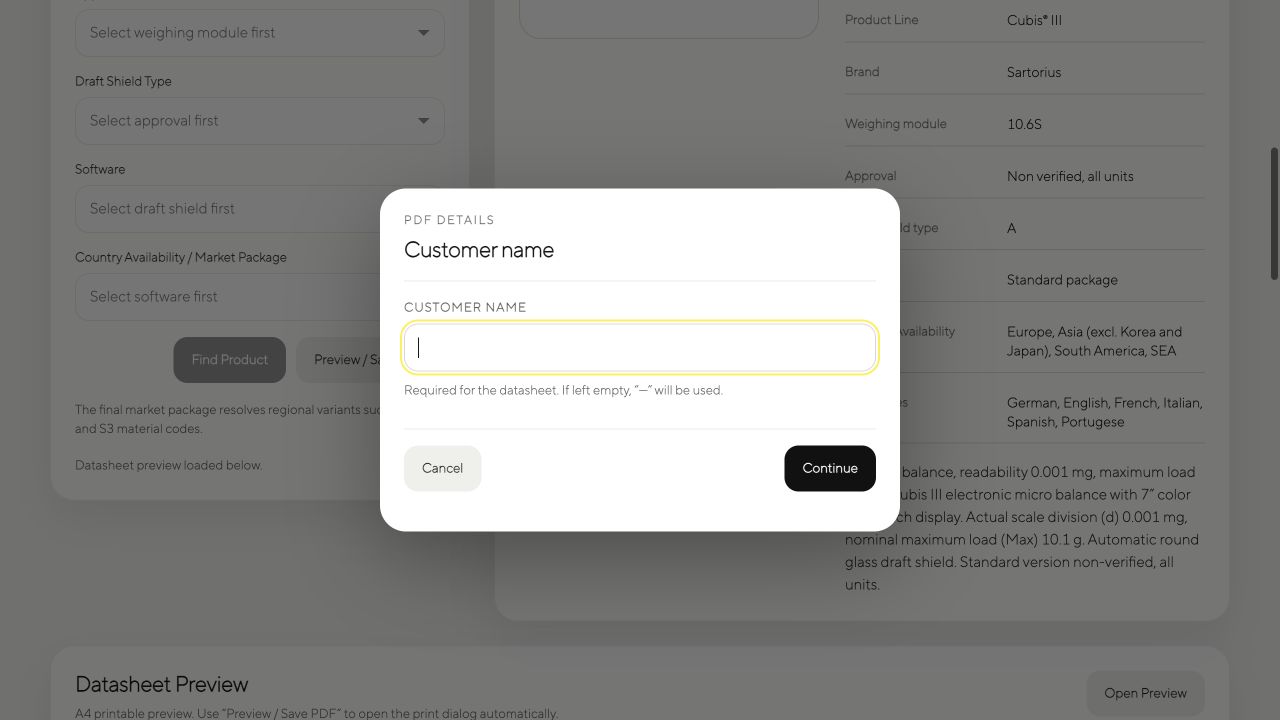
- Select Preview / Save PDF.
- Enter the Customer name. Apostrophes, accents, ampersands, hyphens and international characters are supported.
- Select Continue to open the printable data sheet. If the field is empty, the data sheet uses ---.
- In the browser print dialog, choose Save as PDF.
The customer name remains attached to that preview while you print or save it. Select Cancel to close the dialog without opening a new preview.
Your account
Select Change password to replace your password. Passwords must contain at least 10 characters; lowercase letters are sufficient. Select Logout when you have finished using the application, especially on a shared computer.